Google Calendar MCP Server
A Model Context Protocol (MCP) server that provides Google Calendar integration for AI assistants like Claude.
Features
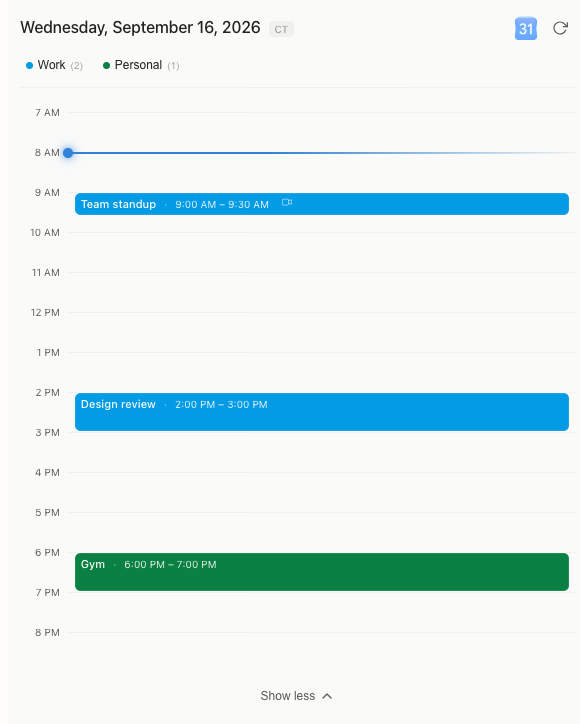
- Multi-Account Support: Connect multiple Google accounts (e.g., work, personal) and query them simultaneously
- Multi-Calendar Support: List events from multiple calendars in a single request
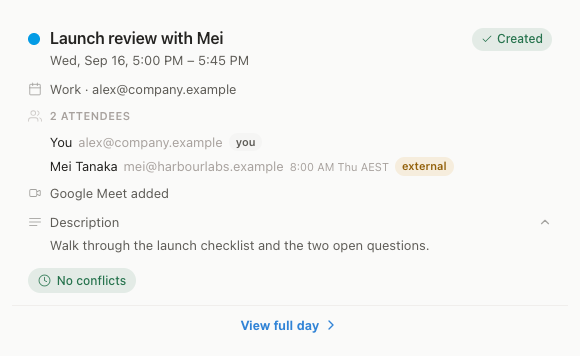
- Cross-Account Conflicts: Detect overlapping events across any combination of calendars
- Event Management: Create, update, delete, and search calendar events
- Recurring Events: Advanced modification capabilities for recurring events
- Free/Busy Queries: Check availability across calendars
- Smart Scheduling: Natural language understanding for dates and times
- Intelligent Import: Add calendar events from images, PDFs, or web links
Quick Start
Prerequisites
- A Google Cloud project with the Calendar API enabled
- OAuth 2.0 credentials (Desktop app type)
Google Cloud Setup
- Go to the Google Cloud Console
- Create a new project or select an existing one.
- Enable the Google Calendar API for your project. Ensure that the right project is selected from the top bar before enabling the API.
- Create OAuth 2.0 credentials:
- Go to Credentials
- Click "Create Credentials" > "OAuth client ID"
- Choose "User data" for the type of data that the app will be accessing
- Add your app name and contact information
- Add the following scopes (optional):
https://www.googleapis.com/auth/calendar.eventsandhttps://www.googleapis.com/auth/calendar
- Select "Desktop app" as the application type (Important!)
- Save the auth key, you'll need to add its path to the JSON in the next step
- Add your email address as a test user under the Audience screen
- Note: it might take a few minutes for the test user to be added. The OAuth consent will not allow you to proceed until the test user has propagated.
- Note about test mode: While an app is in test mode the auth tokens will expire after 1 week and need to be refreshed (see Re-authentication section below).